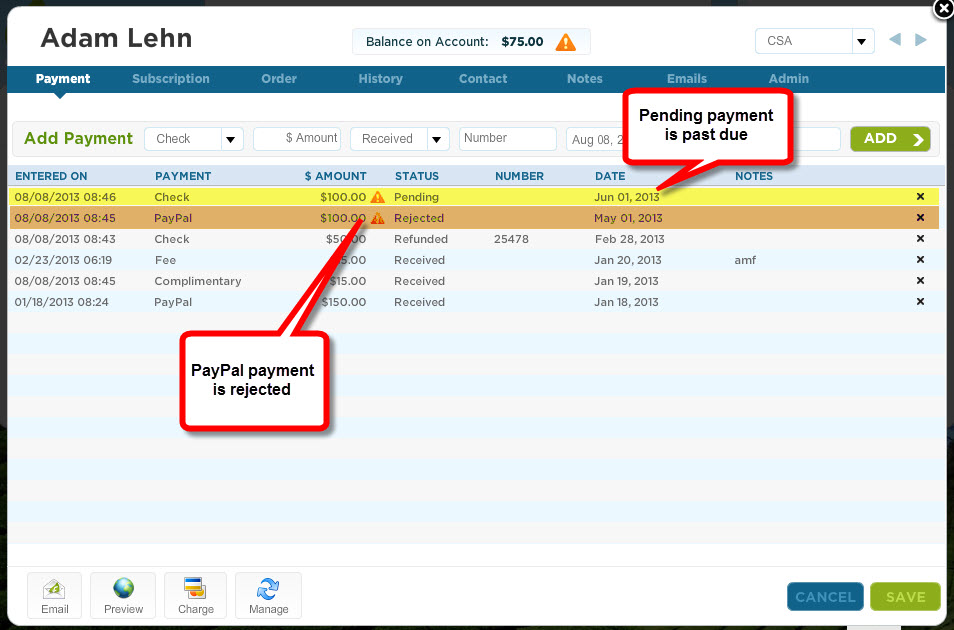
| During the past 2 weeks, we have examined how revenue is recorded on an accrual basis and how this relates to member accounts. This week’s tip reviews how member accounts list debits and credits and how the Accounting Reports summarize these debits and credits. Member Accounts Receivable You may view each member account as an Account Receivable. The member’s balance indicates either how much is owed by a member for the season or how much credit a member has on account to go towards future deliveries depending on your balance view. |  |
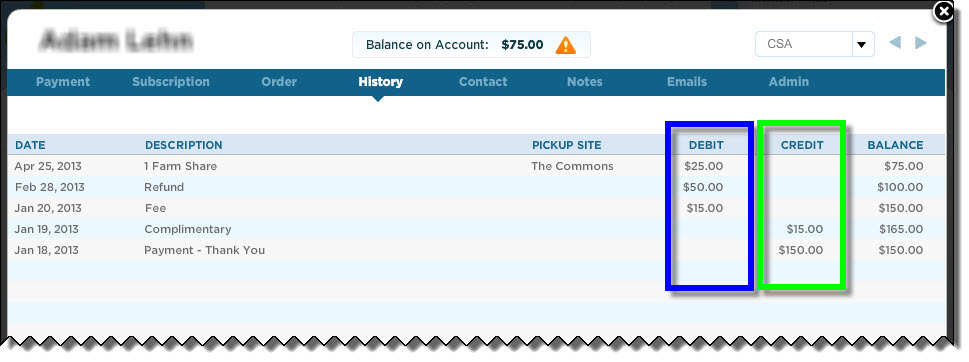
When looking under the History tab of the member file, you may review the debits and credits that summarize a member’s history of transactions:
- Debit - These amounts are recorded as a deduction to a member’s account or a negative amount. Debits include the value of a received subscription, the value of a received store order, a fee, and a refund.
- Credit - These amount are recorded as a receipt or as a positive amount. Credits include received electronic payments, received check or cash payments, received internal payment, and received complimentary payments.
Accounting Reports
The accounting reports summarize the debits and credits that have been attributed to your member accounts. They also summarize transactions that have not been attributed as a debit or credit.
Summary of Debits
The following reports summarize what members have been charged and negative amounts applied to their balances, such as fees and refunds.
Summary of Credits
The following report summarizes what members have paid and positive amounts applied to their balances, such as complimentary payments and internal transfer of funds. These reports show you received revenue.
Rejected & Pending Payments
The following reports will show what has been promised but not yet received from members. These payments are not marked as a credit or debit under the History tab of the member file.
Summary of Debits
The following reports summarize what members have been charged and negative amounts applied to their balances, such as fees and refunds.
- Past Deliveries ($) - Shows the value of deliveries recorded as received. This report summarizes earned revenue.
- Payments, where Output = CSV and sorted by negative amounts - The negative amounts show Refunds and the Fees that a member has been charged from the payment tab of the member file (you may also see a summary of fees only by generating the report where Payment Type = Fees).
Summary of Credits
The following report summarizes what members have paid and positive amounts applied to their balances, such as complimentary payments and internal transfer of funds. These reports show you received revenue.
- Payments, where Payment Type = Check, Electronic, Cash and Payment Status = Received - Shows payments received from members who paid by electronic check, credit/debt card, PayPal, check and cash
- Payments, where Payment Type = Internal and Payment Status = Received - Shows a summary of internal transfers of funds to members’ accounts
- Payments, where Payment Type = Complementary and Payment Status = Received - Shows additional credits that have been applied to members' accounts that have not been paid by the member
Rejected & Pending Payments
The following reports will show what has been promised but not yet received from members. These payments are not marked as a credit or debit under the History tab of the member file.
- Payments, where Payment Type = All and Payment Status = Rejected - Shows a summary of payments that are currently marked as rejected and were attempted during the specified date range.
- Payments, where Payment Type = All, Payment Status = Pending, Date Range = dates in the past - Shows payments that are currently listed as pending but are now past due.
- Projected Deposits - Calculates projected member payments based on scheduled pending payments. Includes all member payments marked as "pending" with a future date. (You may also generate the Payments report, where Payment Type = All, Payment Status = Pending, Date Range = dates in the future)