This week, we've released a new feature that allows you to re-schedule members for missed deliveries!
Watch the video to see how the new feature works, then read more below to learn about how to set up this feature and how to use it.
Watch the video to see how the new feature works, then read more below to learn about how to set up this feature and how to use it.
*If video appears fuzzy, increase quality to 720 HD
How it works:
- Member logs into their account and schedules a delivery hold.
- The Delivery Hold Request automated email is triggered. You will want to edit this email to ask members when they would like to make-up their missed delivery.
- The member may reply to the email to include the dates that they would like to receive the missed shares/options. This reply will be sent to the inbox for the email address that is associated with your Farmigo dashboard.
- Open the member's file from the dashboard and take the following steps:
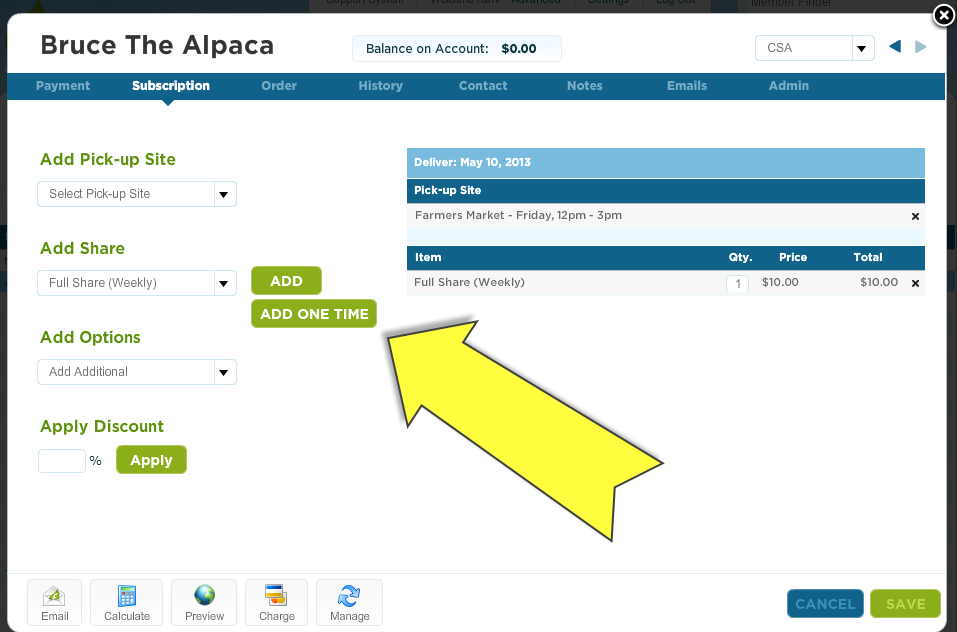
- Click on the Subscriptions tab from the dark blue band at the top
- From the drop-down menu under "Add Share" or "Add Option" select the item that needs to be made up
- Click the button "Add One Time"
- Select the date in the calendar that the member would like to receive the make-up share or option
When can a make-up share or option be scheduled?
- You may schedule a make-up share/option for any future delivery date that has the same delivery day as the member's assigned location. For example, if you deliver to the Farmers' Market on Thursdays, the member can pick up on any future Thursday you are scheduled to deliver to the Farmers' Market.
- The member does not need to choose a date that they are already scheduled for. As long as you are delivering to the location, the member can get their make-up share. This means that members who follow a biweekly schedule can get the make-up share/option on their off week if they wish.
- Note that the delivery date that you select for the make-up share/option will not affect the delivery date of the regularly scheduled share/option.
To make sure your system is configured properly to manage this feature:
Contact support to make sure you have the following settings:
1. Do NOT charge members when they are on hold: Your system should be configured to NOT charge members when they are on hold. This is a setting that must be configured by your technical advisor. To find out if you are set up to NOT charge members when they schedule a delivery hold, contact [email protected].
Check your own settings:
1. Allow members to update vacation: This allows members to put themselves on hold from their member accounts. To ensure this is set up:
1. Do NOT charge members when they are on hold: Your system should be configured to NOT charge members when they are on hold. This is a setting that must be configured by your technical advisor. To find out if you are set up to NOT charge members when they schedule a delivery hold, contact [email protected].
Check your own settings:
1. Allow members to update vacation: This allows members to put themselves on hold from their member accounts. To ensure this is set up:
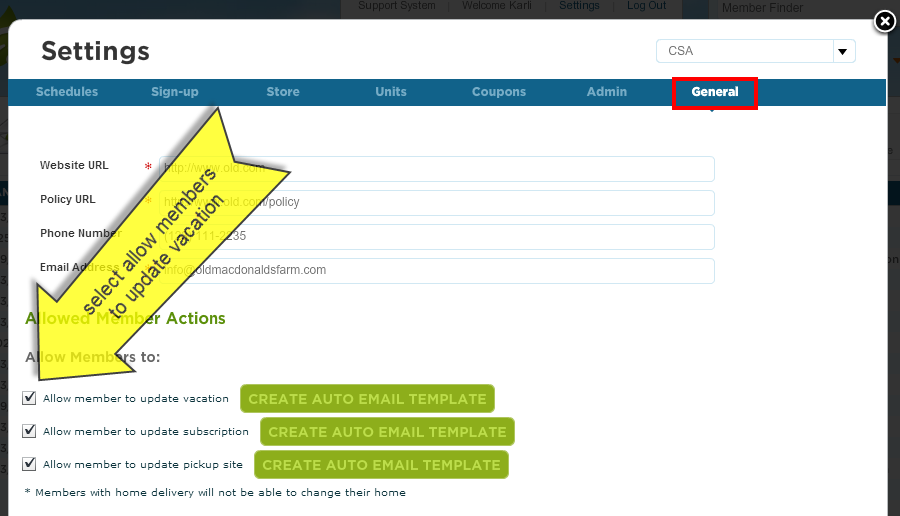
- Go to Settings--> General
- Select "Allow members to update vacation" and save changes
- If you did not previously allow members to update their vacations, you may need to select "CREATE AUTO EMAIL TEMPLATE" This will create a new automated email for you.
2. Edit Automated Email:
Want to schedule a time to pick up your missed share?
Email us back at "farm email" to let us know which dates you would like to pick up a make up share. You can pick up any [Delivery Day] that we are delivering to [Pickup Site]. For biweekly members, this means you can pick up on your off week.
Please make sure you tell us your make up dates at least # days before your scheduled delivery so that we can prepare for your delivery.
- Go to Market--> Connect
- Open the "Delivery Hold Request" Automated Email
- Edit this email to ask the customer when they would like to pick up their make up shares. Here is some recommended text:
Want to schedule a time to pick up your missed share?
Email us back at "farm email" to let us know which dates you would like to pick up a make up share. You can pick up any [Delivery Day] that we are delivering to [Pickup Site]. For biweekly members, this means you can pick up on your off week.
Please make sure you tell us your make up dates at least # days before your scheduled delivery so that we can prepare for your delivery.